Summary
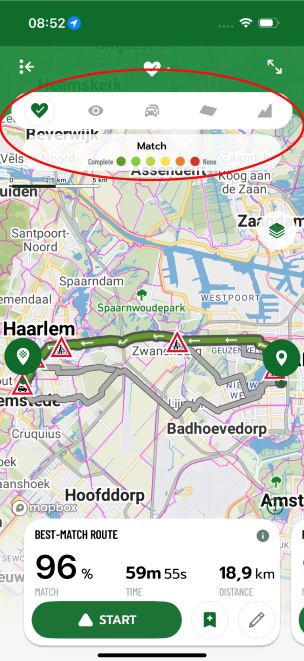
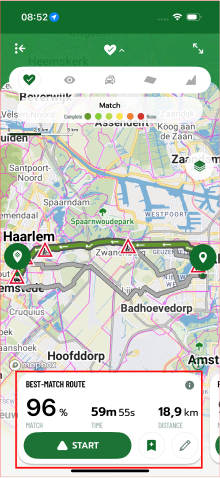
Detailed information about the route, such as surface, traffic, or slope, can be viewed using the five icons in the green top panel on the route suggestions screen or by tapping the bottom information card.
Step-by-step instructions
On the screen with suggested routes (Route A to Route E), several tools are available to explore every segment in the smallest detail:
1. Green icon panel: At the top of the screen, you will find a panel with five icons. Tapping each will change how the route is displayed on the map:
- Match: Zoom in to see how individual parts of the route align with your preferences.
- Traffic: Explore segments with lower or higher traffic intensity.
- Surface: Find out what type of surface awaits you during your ride.
- Slope: Prepare for steeper climbs or look for flat sections of your route.
- Eye: The icon removes route color, making all street names and cycle path information clearly visible.
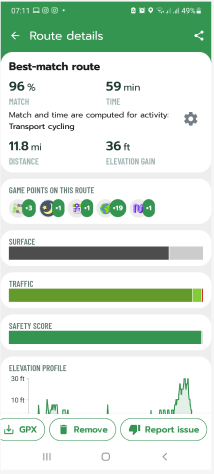
2. Information card: If you tap the white panel at the bottom of the screen, which summarises the ride parameters, detailed information for that specific route will appear.
Frequently Asked Questions (FAQ)
· Why are some segments on the map red in Match mode?
The colour red indicates segments that less closely match your set preferences (e.g., a segment with higher traffic if you prefer quiet roads).
· How can I find out the exact street name if it is covered by the coloured route line?
Tap the Eye icon in the top panel. The colour highlighting will disappear, making the map fully legible.
Was this article helpful?
That’s Great!
Thank you for your feedback
Sorry! We couldn't be helpful
Thank you for your feedback
Feedback sent
We appreciate your effort and will try to fix the article